

Automating Veeam Enterprise Manager Customer Reporting
While performing routine maintenance on the Veeam Enterprise Manager all of the customers had been removed. After spending hours looking through the CRM to locate customers, navigating through lists of active services to find total quotas, all the customers were restored. Taking a step back and looking at the issue it was obvious that there needed to be a solution put in place that would minimize the downtime.
This got me thinking about creating a spreadsheet, manually, of the customers and their quotas, but that would require a manual process with regular, daily or pre-maintenance, updates to maintain validity. Failure to update the spreadsheet could mean that new customers are missed, newly adjusted quotas are incorrect, and decommissioned customer added back.
I wanted to create a proactive automated solution that would aggregate the information we needed, validate the information, and do so daily without any intervention.
Problem / Pain Point
In order to create an automated solution I needed to know how exactly the data was populated. I know that Veeam Enterprise Manager retrieves its data from the Backup and Replication Server, but after delving through Veeam forums, KBs, APIs, and cmdlets the console didn’t expose the necessary data. So the next logical step was to take a look at the database. Maybe there was a table that contained all of the information I was after.
I manually searched through the database looking for any table names, or views, that may hint towards containing the information I was after. Checking for tables that contained names similar to Customers, Organizations, etc., but no single table contained all of the information that I needed. During my exploration I did locate a couple of tables/views by name that, when joined, would give me a complete list of the data I was after. The 3 data points that I was after were:
- Customer Name
- Provisioned Quota
- Consumed Quota
Customer Name and Provisioned quota were necessary metrics for the creation of new customers inside of the Veeam Enterprise Manager. The Consumed Quota was to verify that, once imported, the storage was correctly mapped. If the consumed quota was greater than the provisioned quota there were additional issues on the back end that needed addressed.
Tools
- SQL – Used to query and join the Veeam database tables/views containing customer, quota, and usage information. Python – Used to automate the workflow, process the extracted data, and perform validation.
- Pandas – Used for data manipulation, transformation, and handling
- PowerShell – Used for automation tasks and integrating with the Windows environment.
- Bulk Copy Program (BCP) – Used to efficiently export SQL query results into CSV format.
** PowerShell was selected due to environmental restrictions on the SQL Server that prevented the use of Python directly on the system. **
Solution
Due to environmental restrictions, the solution couldn’t be implemented as a single Python application. As direct copying of files from server to server was prohibited, a file share was used to copy files.
Instead the workflow was divided into two independent scripts each performing their own part of the task. The Powershell script runs where the SQL Server is installed so it can access the database and BCP, while the Python script runs in an environment better suited for data processing and notifications.
The Powershell script is responsible for data extraction, CSV generation, file transfer, logging, and log rotation. The Python script is responsible for file ingestion, data validation, report generation, and slack notification.
I decided to send out Slack notifications for a couple of reasons:
- The results were sent to an alerts channel, which is actively monitored by the entire team
- Slack is “outside” the local environment so it makes it easier to check
With the required data points identified, the next step was designing a workflow that could extract the data, generate a report, validate its contents, and make the results available without manual intervention.
SQL Query and BCP
# Define the SQL query that will be used later with BCP
$bcpQuery = @"
SELECT
  vcd.org_name AS Customer,
  CONVERT(decimal(18,2), qv.[quotaBytes] / 1073741824.0) AS [Provisioned GB],
  CONVERT(decimal(18,2), qv.[usedBytes] / 1073741824.0) AS [Consumed GB]
FROM dbo.[C.Quotas.View] qv
LEFT JOIN dbo.[C.Vcd.Organizations] vcd
  ON qv.[organization_id] = vcd.[id]
WHERE vcd.org_name IS NOT NULL
ORDER BY vcd.org_name;
"@
# Export raw data using BCP (Unicode, comma-separated)
& bcp "$bcpQuery" queryout $dataFile `
"-S" "SQL SERVER NAME" `
"-d" "VEEAM ENTERPRISE MANAGER" `
"-T" `
"-w" `
"-t" "," `
"-q"
# Prepend headers in matching Unicode encoding
$header = "Customer,Provisioned GB, Consumed GB`r`n"
# Read original BCP file as bytes
$dataBytes = [System.IO.File]::ReadAllBytes($dataFile)
# Encode header in UTF-16 LE (matches -w)
$headerBytes = [System.Text.Encoding]::Unicode.GetBytes($header)
# Write final CSV: header + original data
[System.IO.File]::WriteAllBytes($finalFile, $headerBytes + $dataBytes)
This section builds the query necessary to gather all of the required information for the task. It is then passed to the BCP utility which exports the raw data into a CSV file. Then that data is read as bytes, encoded, and written out to a new CSV file with proper headers.
Logging
Start-Transcript -Path "$($logdir)\Cleanup-$($timestamp).log"

...

Stop-Transcript
For simplicity I elected to use the Powershell Transcript Start/Stop for the logging.
# Rotating files to keep only 7 days worth
Get-ChildItem -Path $path -Recurse -File |
Sort-Object LastWriteTime -Descending | Select-Object -Skip $totalReports | Remove-Item

Get-ChildItem -Path $logDir -Recurse -File |
Sort-Object LastWriteTime -Descending | Select-Object -Skip $totalReports | Remove-Item
Since the script runs once daily a variable, totalReports, was set to 7 and the above lines check for total number of files in a directory, sort by descending which makes the oldest bottom of the list, and removes it.
Validation & Slack Webhook
# Accounts that will be used for testing validity of the Report
    accounts = ['Test Account 1','Test Account 2','Test Account 3']

    # Reads the file with the correct encoding
    df = pd.read_csv(f'C:\\temp\\{name}', encoding='utf-16-le')

    filteredDf = df[df['Customer'].isin(accounts)]

    for index, row in filteredDf.iterrows():
        customer = row['Customer']
        provisioned = row['Provisioned GB']
        consumed = row[' Consumed GB']

        if customer is not None:
            if provisioned is not None:
                if consumed is not None:

                   # Builds the Slack Webhook based on the tests above
                    response = webhook.send(
                        blocks = [
                             {
                                "type": "header",
                                "text": {
                                    "type": "plain_text",
                                    "text": f"Test Results: {customer}"
                                }
                            },
                            {
                                "type": "section",
                                "text" : {
                                    "type":"mrkdwn",
                                    "text": textwrap.dedent( f"""
                                    Account Exists: Successful Test :green_check_mark:
                                    Provisioned Space: Successful Test :green_check_mark:
                                    Consumed Space: Successful Test :green_check_mark: """).strip()
                                }
                            }
                        ]
                    )

        else:
            response = webhook.send(
                        blocks = [
                            {
                                "type": "section",
                                "text" : {
                                    "type":"mrkdwn",
                                    "text": ("""One or more of the validation tests failed.
                                    Please check the report, logs, and script for errors""")
                                }

                            }
                        ]
            )
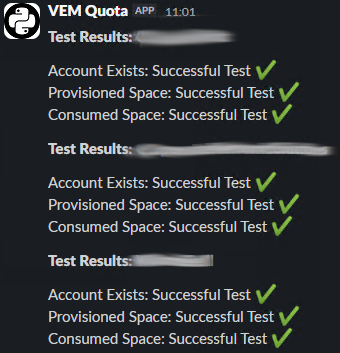
To ensure that the tests we have are reliable 3 accounts were chosen for the test. Two of the accounts were internal accounts that would not be removed, and another long term customer.
The CSV file is read in and stored in a pandas dataframe. Each row is then iterated through and checks performed to see if Customer, Provisioned, and Consumed values are None. The results will then be compiled into a webhook which is sent to Slack after the last dataframe is validated.
Slack Output
Impact / Results
Since the beginning of development there have not been any similar issues during routine maintenance. However, this same issue had occurred twice within a 6 month period. Each occurrence required approximately 3 hours, with 3-4 employees, to manually gather the required information and import all customers back into the Enterprise Manager. When calculating the total recovery effort, each incident required approximately 12+ man hours spread across multiple employees. With two occurrences, this resulted in nearly 24 total man hours spent recovering from an issue that could have been mitigated through automation.
While there has not been an immediate opportunity to validate the recovery process, the expected impact during the next outage of this type is a significant reduction in recovery time. Instead of requiring multiple employees to manually gather customer information, the data will already be available and can be used to restore customers back into the Enterprise Manager in under 1 hour with a single employee.
Another factor to consider is the effort required to maintain a manual spreadsheet. A person responsible for maintaining the spreadsheet would need to regularly compare the Enterprise Manager interface against the spreadsheet to ensure accuracy. Even with a dedicated process, this introduces the possibility of human error and outdated information.
Each time the script is executed, all customer data is extracted directly from the database, processed, exported, and stored. The entire process completes in less than 1 minute. Additionally, every Friday a separate validation script runs to verify the generated data. This validation process ensures that expected customers exist, quotas are populated, and the exported information remains accurate, with an average runtime of approximately 1 minute.
Summary
This project demonstrates how a recurring operational problem can be transformed into an automated, reliable process by understanding where data resides and how to extract it effectively. By combining SQL, PowerShell, Python, and scheduled validation, the solution not only reduced the effort required to recover from future incidents but also introduced continuous verification of customer data. More importantly, it replaced a reactive, manual process with a proactive workflow that helps ensure the information needed for recovery is always current and readily available.