
Linux Screen
Getting Started with Linux Screen
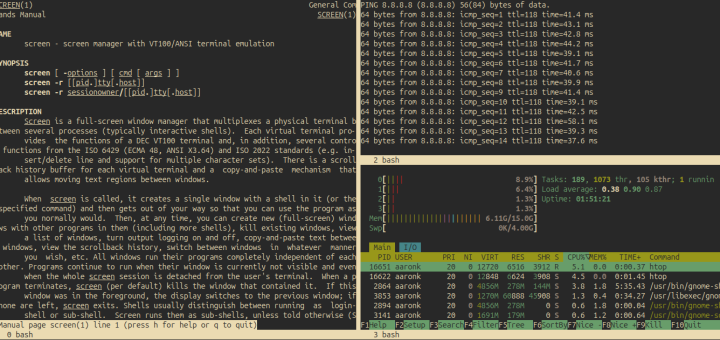
Long-running tasks such as database migrations, backups, software updates, or large file transfers can be frustrating if your SSH connection drops or your terminal closes unexpectedly. GNU Screen solves this problem by allowing you to create persistent terminal sessions that continue running even after you disconnect.
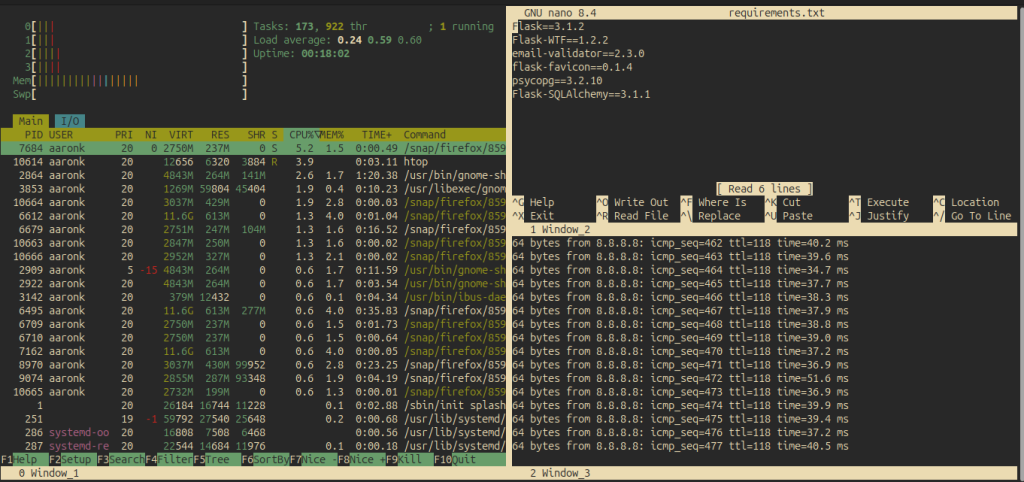
With Screen, you can detach from a session, reconnect later, and continue exactly where you left off. It also allows you to manage multiple terminal windows within a single session, making it a valuable tool for Linux system administration.
Installing Screen
Ubuntu / Debian
sudo apt install screenRHEL / Rocky Linux
sudo yum install screenAfter installation, verify that Screen is available by checking its version:
screen --version
Starting a Screen Session
Launch Screen by running:
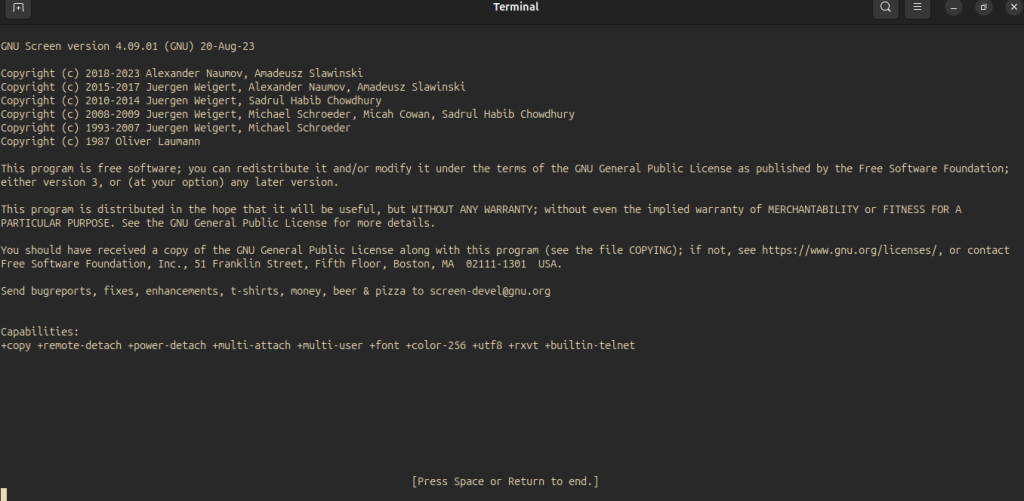
screenThe first time Screen starts, you’ll be presented with the GNU license agreement. Press Space to continue, and you’ll be dropped into what appears to be a normal terminal session.
Although it looks like a regular shell, you’re now working inside a Screen session.
Creating Named Sessions
By default, Screen assigns a session name based on its process ID (PID). While this works, it quickly becomes difficult to manage multiple sessions.
Naming your sessions makes it much easier to identify their purpose.
For example, if you’re performing a database migration:
screen -S example_db_migrationUsing descriptive names makes it easier for you—or another administrator—to identify the correct session later.
Viewing Existing Sessions
To list all running Screen sessions, use:
screen -lsThe output includes:
- Session ID (PID)
- Session name
- Creation date
- Whether the session is attached or detached
Example
There is a screen on:
14460.example_db_migration (Detached)
2 Sockets in /run/screen/S-aaronk

Reattaching to a Session
If you’ve detached from a session, reconnect using either the session name or PID:
screen -r <SESSION_NAME_OR_PID>Example:
screen -r example_db_migrationor
screen -r 12345To verify you’re inside the expected Screen session, run:
echo $STYThis returns the session’s PID and name.
Detaching from a Session
One of Screen’s most useful features is the ability to leave a session running while disconnecting from it.
Press:
[ctrl + a] dYour programs continue running in the background, allowing you to safely close your terminal or SSH session.
Now you should be attached to the existing screen session. To confirm run echo $STY and that will give you the PID and name of the existing session.
Closing a Screen Session
Closing a Screen Session
When you’re finished with a session, you can terminate it by pressing:
Ctrl + A, then K
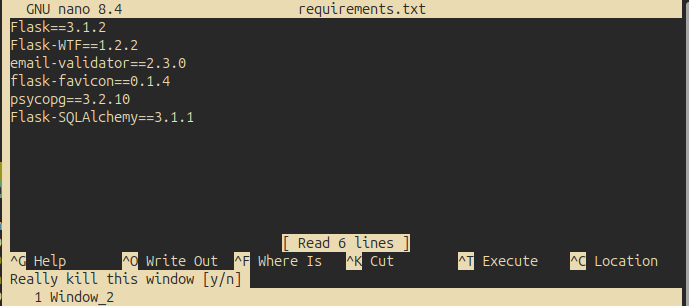
Screen will ask for confirmation:
Really kill this window [y/n]
Press Y to close the session.
Alternatively, if you’ve finished the work running inside Screen, simply type:
exitThis will also end the session when no shells or processes remain.
Common Keyboard Shortcuts
| Function | Shortcut |
|---|---|
| Detach from session | [ctrl + a] d |
| Split screen vertically | [ctrl + a] | |
| Split screen horizontally | [ctrl + a] Shift + S |
| Move between screens | [ctrl + a] Tab |
| Rename current window | [ctrl + a] Shift + A |
| Kill current window | [ctrl + a] k |
| Show all commands | [ctrl + a] ? |
Why Use Screen?
GNU Screen is a lightweight yet powerful utility that every Linux administrator should know. Whether you’re managing servers remotely or running commands that may take hours to complete, Screen ensures your work continues even if your connection doesn’t.
A few common use cases include:
- Database migrations
- Software updates
- Large file transfers
- Log monitoring
- Backup and restore operations
- Long-running scripts or automation
Once you begin using Screen regularly, it quickly becomes an essential part of your Linux administration toolkit.